New Feature
Multi-Workspace Management
What Are Workspaces?
This release transforms Fundament from a single shared environment into a true enterprise platform. Organizations can now roll out Fundament to multiple departments, business units, or even client teams — each with full isolation, independent configuration, and their own admin, while maintaining a single operational overview at the top.
A workspace is a fully isolated environment. Think of it as a separate room inside your company's Fundament instance. Each workspace has its own agents, libraries, dashboards, chats, users, groups, and configuration.
What is isolated per workspace:
Agents
Libraries and knowledge bases
Dashboards
Chats and conversation history
User memberships and role assignments
Feature toggles and AI model availability
What is shared across the whole organization:
User identities (an email address belongs to one account but users can be members of multiple workspaces with different roles in each)
Global agents explicitly marked as "Global" by a Super Admin
The organization's billing and top-level configuration
When your organization was first set up, a default workspace called "Primary Workspace" was created automatically. All your existing data lives in it.
The Admin Panel: Two Levels, One View
The Admin panel now has two distinct navigation levels that clearly separate what you're managing:
Global level — affects the entire organization:
Workspaces (create, manage, delete)
Analytics (cross-workspace usage view)
Agents (globally published agents)
Workspace level — affects only the currently selected workspace:
Users
Roles & Permissions
Groups
When you click into a specific workspace from the Global level, you drop into that workspace's context and manage everything scoped to it.
User Roles: Who Can Do What
Fundament has four user roles. Each is workspace-scoped, meaning a user can have a different role in each workspace they belong to.Adding a Page
1) Super Admin
The Super Admin is the organization's highest authority in Fundament. There is typically one or a small number of these per organization.
What a Super Admin can do:
See and manage all workspaces in the organization. They are automatically added to every workspace
Create new workspaces and delete existing ones
Access all users, agents, libraries, and resources across all workspaces simultaneously
Manage workspace configuration (features, models, settings) for any workspace
Promote or demote other users to any role in any workspace
View cross-workspace analytics
How it works behind the scenes: Super Admins have unrestricted permissions. The platform grants them access to everything without evaluating individual resource conditions. When a new workspace is created, every existing Super Admin is automatically added to it with no additional action required.
Important nuance: When a Super Admin views the admin panel from within a specific workspace's context, their view is scoped to that workspace. This is intentional so they can work within one workspace without being overwhelmed by all data. They can switch context at any time via the Global level sidebar.
2) Workspace Admin
The Workspace Admin manages day-to-day operations within a single workspace. They have full control over everything in their workspace, but cannot see or touch other workspaces.
What a Workspace Admin can do:
Invite, manage, and remove users within their workspace
Create, edit, and delete any agent, library, or dashboard in the workspace
Manage groups and roles within the workspace
View workspace-level analytics
Configure workspace settings (name, description, logo)
What a Workspace Admin cannot do:
Create or delete workspaces (that's Super Admin only)
See users, agents, or resources from other workspaces
Promote users to Super Admin
Modify organization-wide settings
3) User Admin
A middle tier — the User Admin focuses on people management within the workspace. Useful for HR admins or team leads who handle onboarding but don't need full platform access.
What a User Admin can do:
Invite, edit, and remove users in the workspace
Create and manage groups within the workspace
Create their own agents and libraries
View workspace-level roles (but not modify them)
What a User Admin cannot do:
Manage workspace configuration or feature toggles
Delete or modify agents/libraries that belong to other users
Access workspace analytics
4) Basic User (Default)
Every user added to a workspace starts as a Basic User. This is the default role assigned automatically on invitation.
What a Basic User can do:
Create and manage their own private agents and libraries
Start chats with any agent they have been granted access to (via groups or public agents)
Submit bug reports
Switch between their workspaces if they belong to more than one
What a Basic User cannot do:
Invite other users
Manage groups or roles
See or edit other users' private agents or libraries
Workspace Configuration Tabs
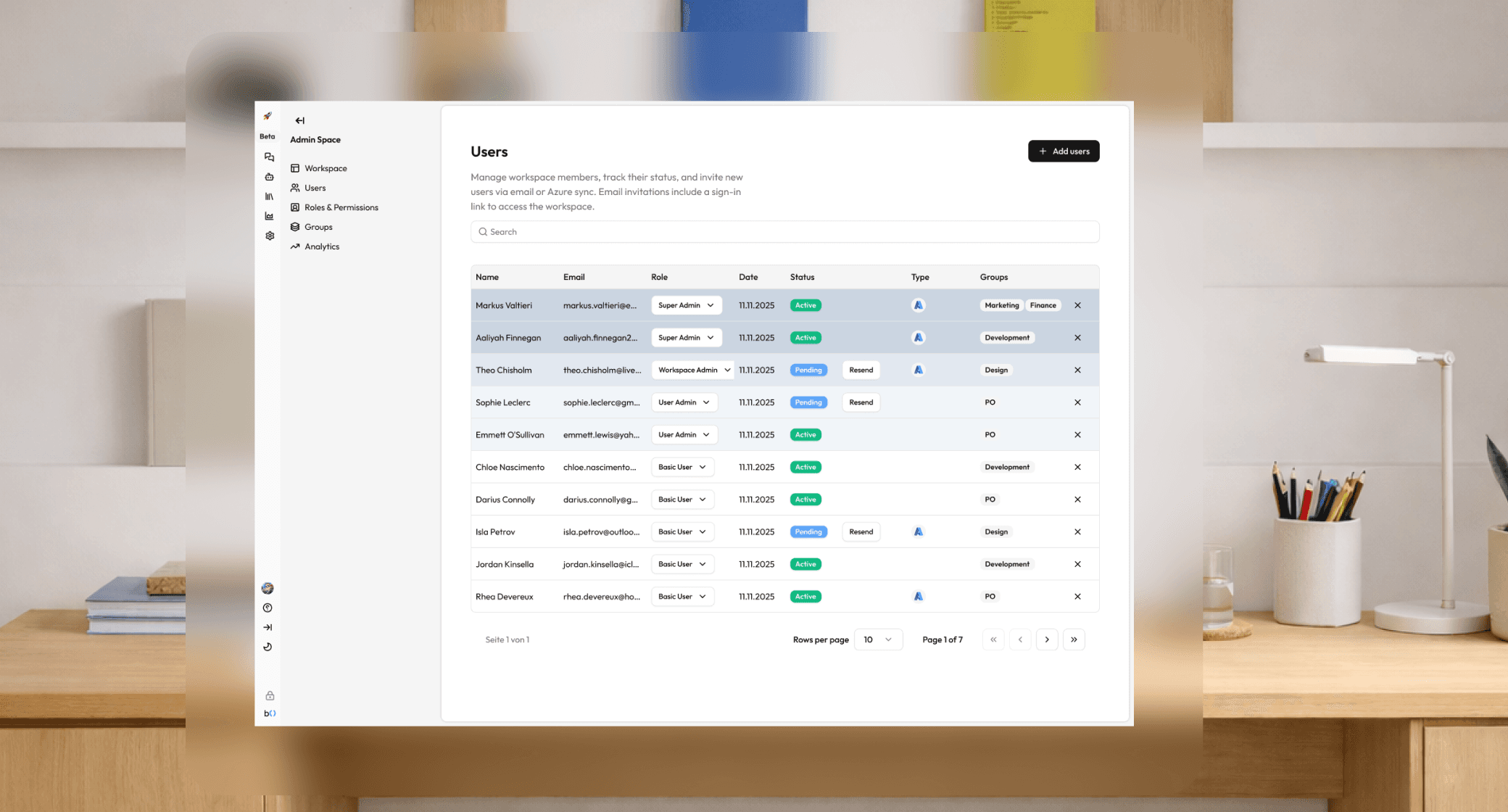
When a Super Admin or Workspace Admin opens a workspace's settings, they see 6 configuration tabs:
Settings — Rename the workspace, update its description, and change the workspace image/logo.
Models — Choose which AI models are available to users in this workspace. You can restrict a workspace to only specific providers (e.g., only OpenAI models) or allow all models. This setting overrides the user-level model selector — users will only see the models you have enabled here.
Features — Toggle which platform features are active in this workspace. Features include: chat history persistence, dashboards, embedded agents, user management controls, and multi-workspace access. Turning a feature off here hides it from all users in the workspace.
Users — Invite users by email, assign them a workspace role, view their current role and status, and remove them from the workspace if needed.
Groups — Create and manage groups (see below), and configure Azure AD group sync if your organization uses Azure SSO.
Roles & Permissions — View all roles that exist in the workspace, including system roles and any custom roles that have been created. Advanced admins can create custom roles with specific permission combinations.
Groups vs. Roles & Permissions
This is one of the most important things to understand about Fundament's permission system, and it trips people up:
Roles define what a user is allowed to do. They are about permissions: Can this person create agents? Can they manage other users? Can they see workspace analytics? Every user in a workspace has exactly one workspace role that determines their base level of access.
Groups define which resources a user can see and use. They are about resource sharing: agents, libraries, and dashboards can be shared with a group. When you're in a group, you can access everything that has been shared with that group.
Think of it this way: your Role is your job title (Admin, User Admin, Basic User). Your Group is your department (Marketing Team, Legal Team, Product Team) or working title (Market Research, Content Group WM2026). Your job title tells you what actions you're allowed to perform. Your department or working title tells you which files are on your desk.
Practical example:
A Basic User in the "Legal Team" group can access the Legal Agent and the Contracts Library that have been shared with that group, even though Basic Users normally can only see their own resources.
A Basic User not in the "Legal Team" group cannot see those resources, even though they have the same workspace role.
Workspace Switching: For Users with Multiple Workspaces
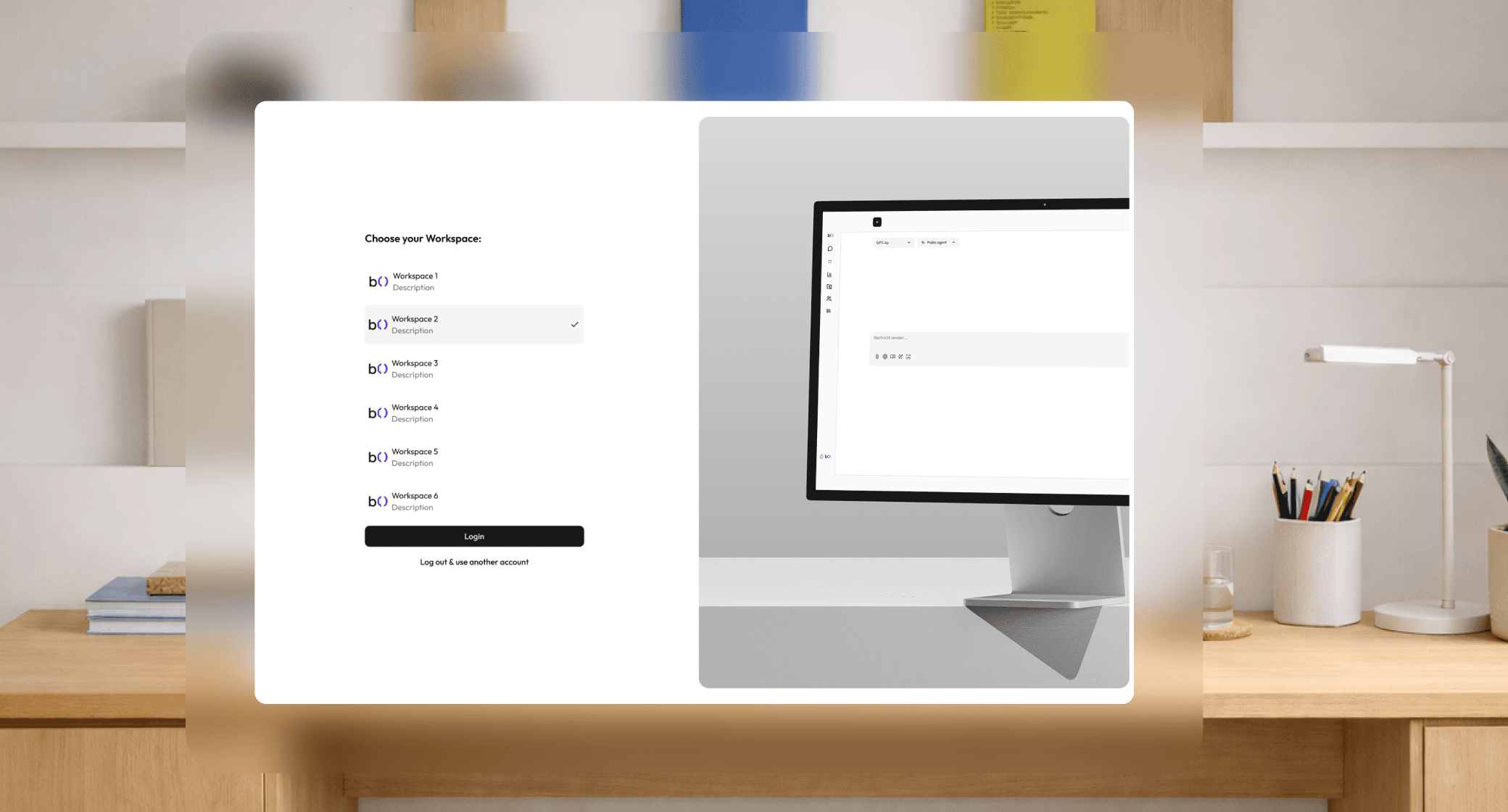
If you are a member of more than one workspace, Fundament gives you a workspace switcher in the sidebar.
At login: If you have multiple workspaces, you'll be prompted to choose which one to enter. You can change this later at any time without logging out.
In the sidebar: The workspace selector shows your current workspace. Click it to see all workspaces you have access to and switch instantly.
What happens when you switch: All agents, libraries, dashboards, and chats you see will update to reflect the new workspace. Your conversation history stays where it was — nothing is lost. Your permissions also update automatically, since your role may be different in each workspace.
Azure AD Integration: Automatic User Sync
If your organization uses Microsoft Azure Active Directory (Azure AD), Fundament can automatically manage workspace membership based on your Azure AD groups.
How it works:
A Super Admin connects the workspace to Azure AD in workspace settings
Fundament maps Azure AD groups to Fundament
When a user signs in via Azure SSO, their Azure group memberships are checked automatically
They are added to the corresponding Fundament Workspace and granted the assigned role — no manual invitation needed
If a user is removed from an Azure group, they lose access in Fundament on next sync
Sync triggers: Sync runs when a user signs in via Azure SSO. Admins can also trigger a manual sync from the Groups tab at any time.
Invite emails: When users are newly added via Azure sync, they now receive an invitation email from Fundament with instructions on how to access the platform. This happens automatically without any admin action.