Release Note
Release October 2026
Neue Funktionen
Excel über mehrere Dateien auswerten
Zieh bis zu fünf Excel-Dateien in eine Nachricht und werte sie in einem Schritt aus: Summen, Vergleiche, Abweichungen und komplexe Berechnungen über alle Blätter. Zurück kommt eine fertige Arbeitsmappe mit mehreren Blättern, Formeln, Filtern, bedingter Formatierung und Diagrammen, die du in Excel ganz normal weiterbearbeiten kannst. Zum Beispiel: „Berechne aus Buchungen und Preisliste den Umsatz je Region und vergleiche ihn mit dem Budget. Wo liegen wir mehr als 10 % daneben?“

Word, PDF und PowerPoint fertig zum Download
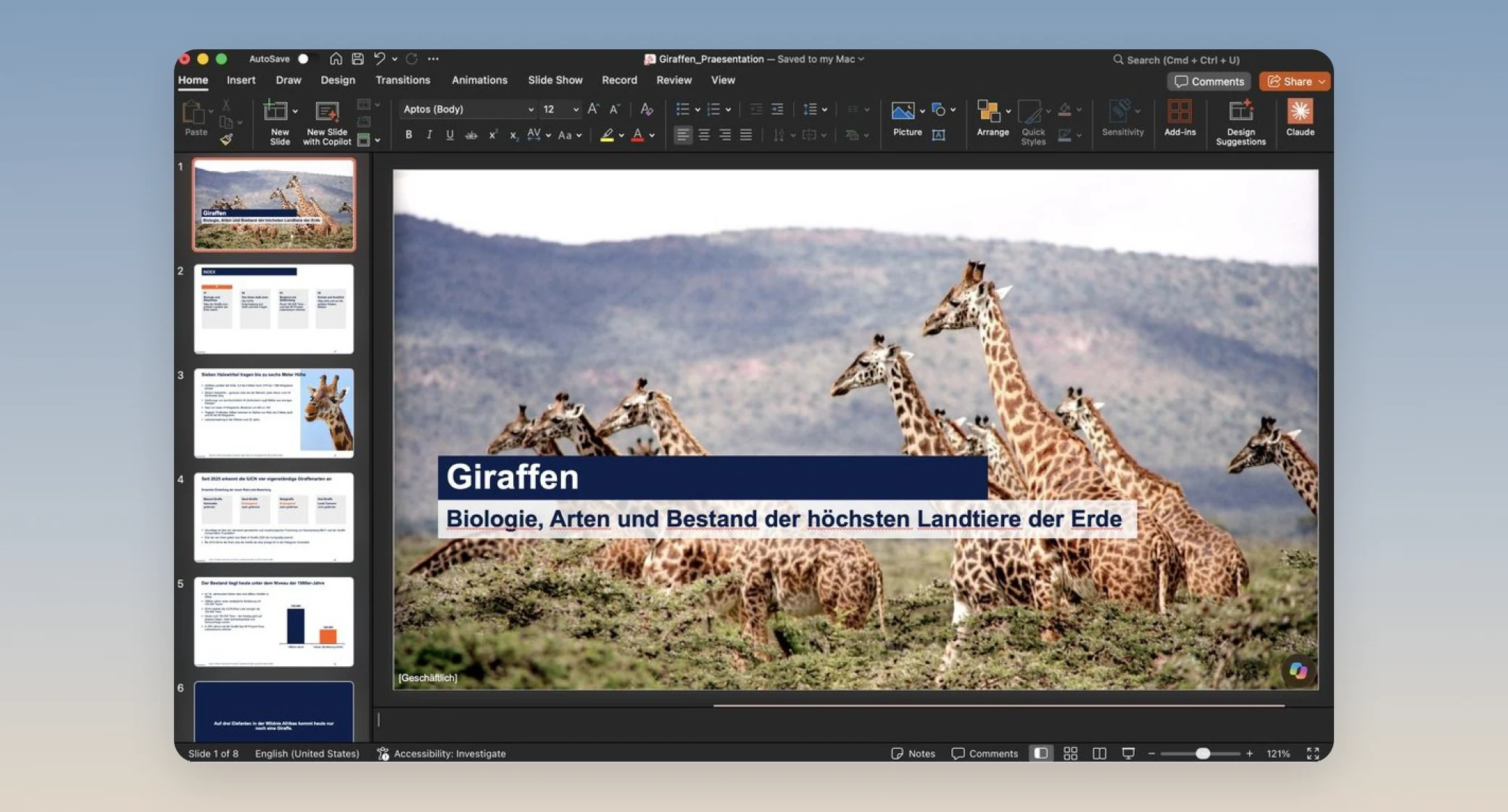
Fundament erstellt Berichte, Protokolle und Angebote in Word, Profile oder Rechnungen als druckfertiges PDF und komplette PowerPoint-Foliensätze mit Titelfolie, Gliederung, Diagrammen und passenden Bildern. Alle Dateien lassen sich in Office ganz normal weiterbearbeiten. Hochgeladene PDFs verarbeitet Fundament aktuell bis 500 Seiten.
Präsentationen und interaktive Dokumente im Browser
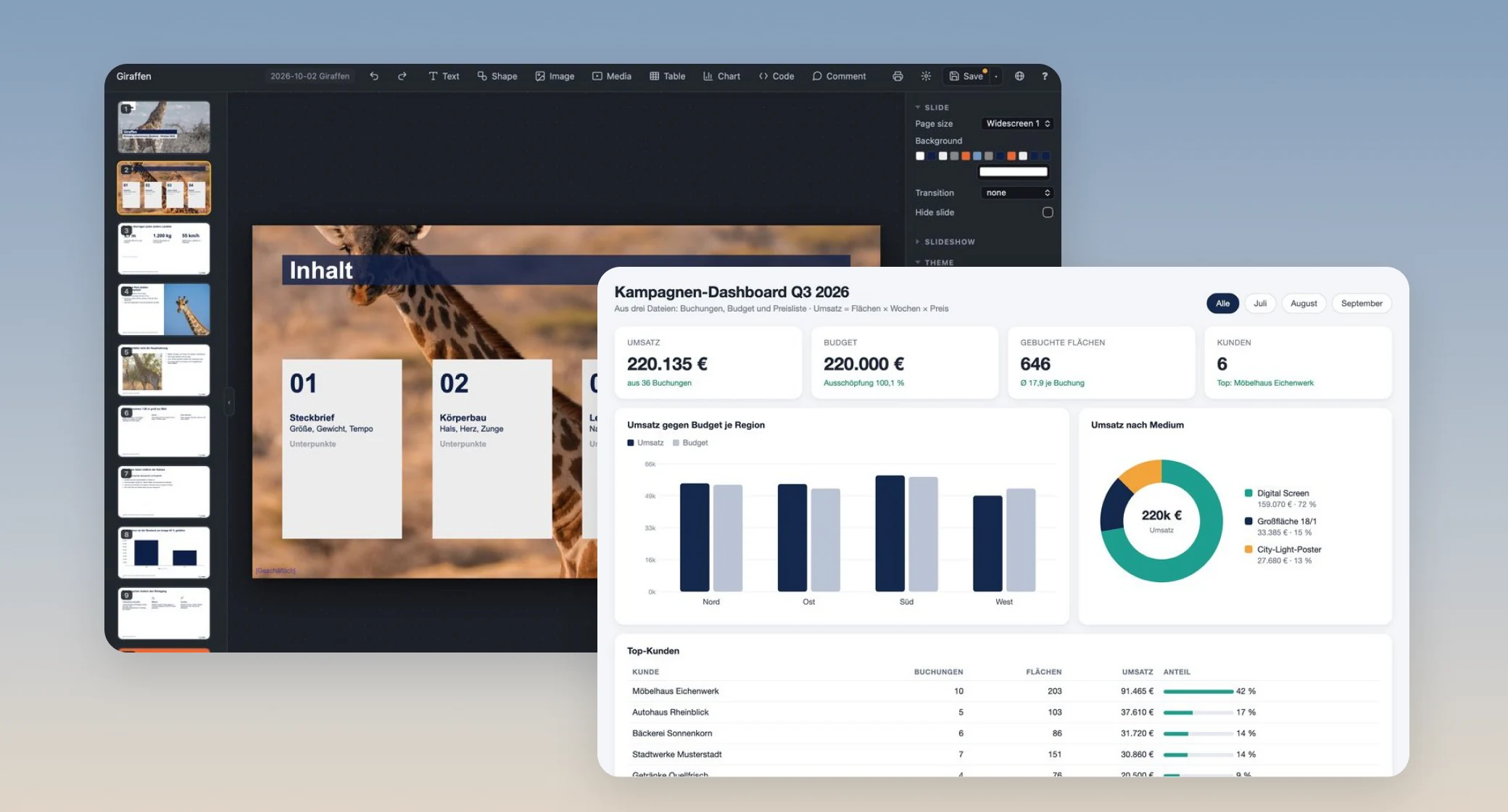
Präsentationen entstehen auf Wunsch auch als HTML-Datei, mit Bildern aus dem Internet und mehr gestalterischen Möglichkeiten. Die Datei öffnet sich im Browser, dort bearbeitest du Texte, Bilder und Folien direkt und präsentierst von dort. Genauso entstehen interaktive Dokumente, etwa ein Dashboard aus mehreren Excel-Dateien mit Filter nach Monat.
Vorlagen ausfüllen und bestehende Dateien bearbeiten
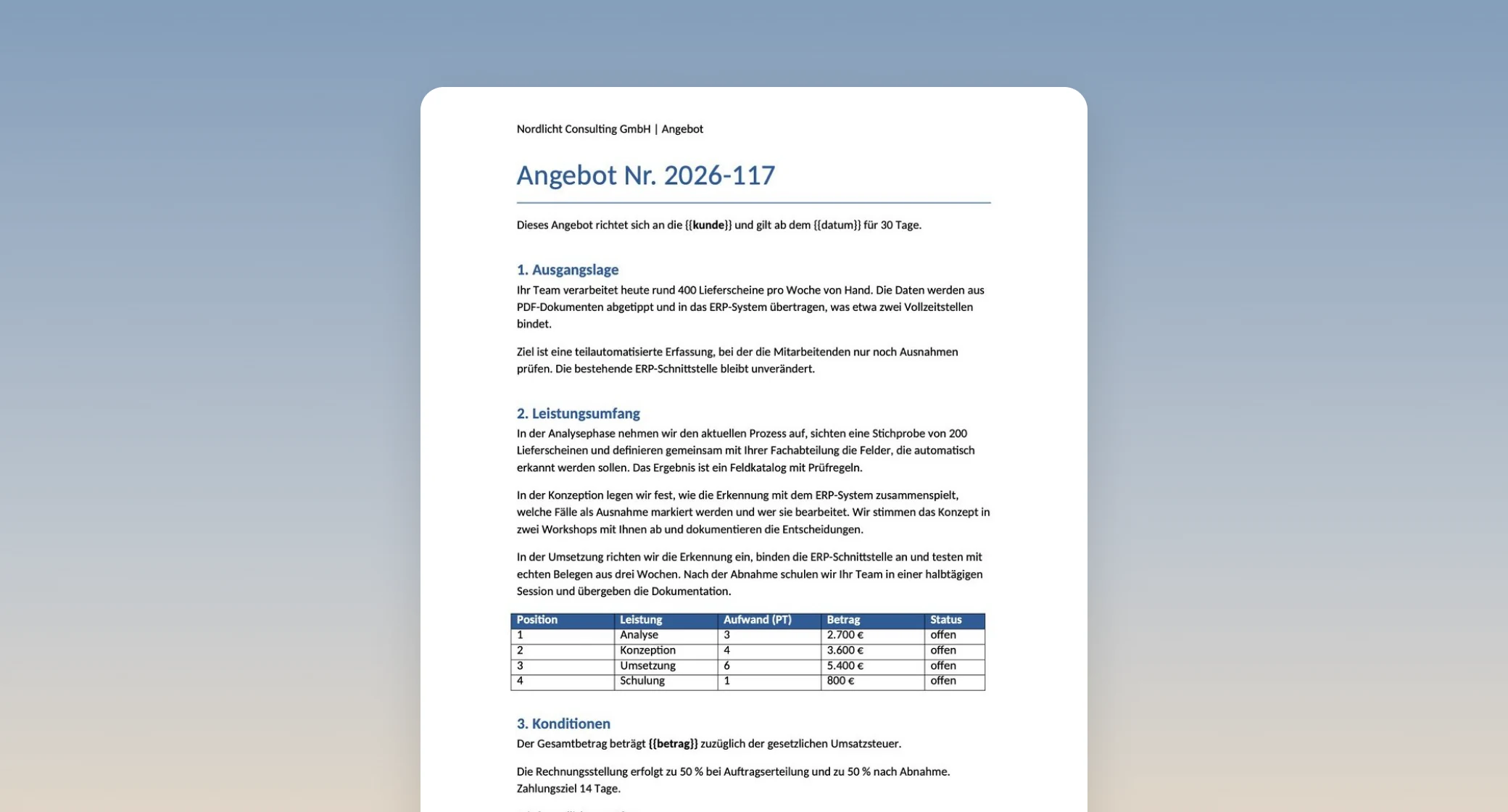
Lade deine eigene Vorlage hoch, zum Beispiel Briefpapier, Angebotsvorlage oder Formular, und Fundament setzt die Inhalte an die richtigen Stellen. Layout, Logo und Formatierung bleiben erhalten. Bestehende Dateien bearbeitet Fundament gezielt, statt sie neu zu bauen: Spalten in Excel ergänzen, eine Folie in PowerPoint einfügen oder Text in Word austauschen. Der Rest der Datei bleibt, wie er ist.
Bilder verbessern und Motive auf Werbeträger setzen
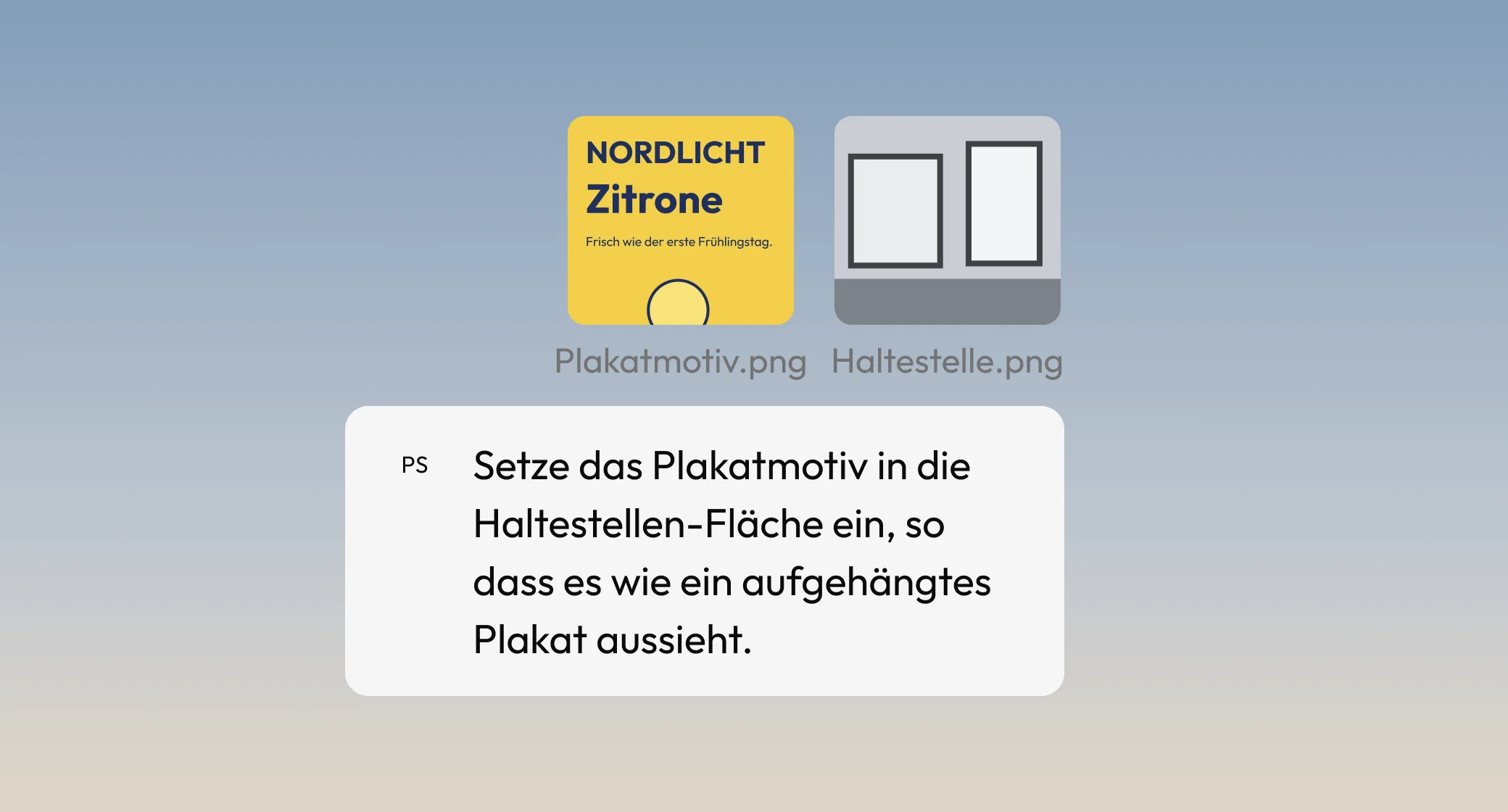
Generierte Bilder lassen sich Schritt für Schritt im selben Chat weiterentwickeln, zum Beispiel „Das gleiche Bild jetzt mit Konfetti in der Luft.“ Außerdem kannst du mehrere Bilder auf einmal übergeben und kombinieren: Lade ein Motiv und ein Foto des Werbeträgers hoch und schreib „Setze das Plakat aus dem ersten Bild in die linke Werbefläche im zweiten Bild.“
Teams-Meetings direkt in Fundament nachbereiten
Fundament holt das Transkript direkt aus Teams, ohne Download und Upload. Daraus entstehen Entscheidungen als Liste, Aufgaben mit Verantwortlichen und Frist als Tabelle, Jira-Tickets und Folgetermine im Kalender sowie eine Follow-up-Mail an die Teilnehmenden, die erst nach deiner Freigabe verschickt wird.
E-Mails gehen erst nach deiner Freigabe raus
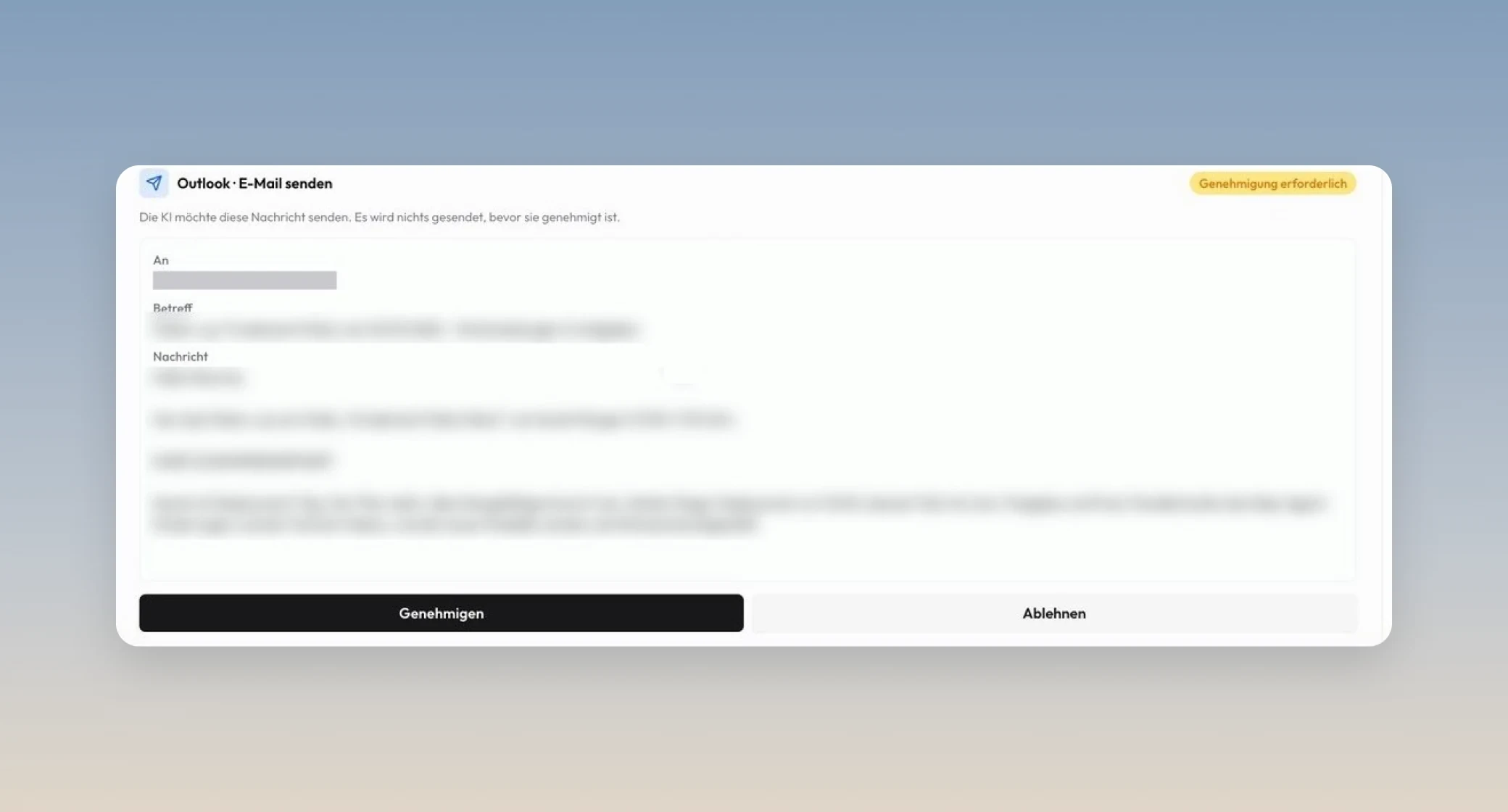
Schreibt der Assistent eine E-Mail für dich, zeigt er sie vor dem Versand als Karte mit Empfänger, Betreff und Text. Gesendet wird erst, wenn du auf „Genehmigen“ klickst, mit „Ablehnen“ bleibt sie liegen.
E-Mail-Anhänge direkt im Chat
Der Assistent findet die Mail in Outlook und holt PDF-, Word- oder Excel-Anhänge in den Chat, zum Beispiel „Hol mir den Anhang aus der letzten Mail von Seeblick Reisen.“ Danach kannst du sie wie jede hochgeladene Datei zusammenfassen, auswerten oder vergleichen. Aktuell funktioniert das mit Microsoft 365 (Outlook), Gmail folgt. Eingebettete Bilder im Mailtext werden noch nicht übernommen. Die Funktion muss vom Workspace Admin aktiviert werden.
Gemeinsame Termine finden und anlegen
Nenne die Teilnehmenden und einen Zeitraum, zum Beispiel „Wann haben Anna, Tom und ich nächste Woche zwischen 9 und 17 Uhr 30 Minuten frei?“. Der Assistent prüft die Kalender in Outlook oder Google und schlägt passende Zeiten vor. Den passenden Vorschlag trägt er direkt als Termin mit Teams-Link ein, und alle Teilnehmenden bekommen die Einladung. Verschieben geht per Nachricht im Chat. Die Funktion muss vom Workspace Admin aktiviert werden.
Slack direkt aus dem Chat nutzen
Über die neue Slack-Integration fasst der Assistent Kanäle und Threads zusammen, findet Nachrichten über Kanäle hinweg mit Absender und Zeitpunkt und postet in Kanälen oder antwortet im Thread. Dateien aus Slack folgen in einem späteren Release. Die Integration muss vom Workspace Admin aktiviert werden.

Microsoft OneNote und Planner sind angebunden
In OneNote durchsuchst du Notizbücher, liest Seiten und legst neue Seiten an. In Planner rufst du deine Aufgaben ab, legst neue an und markierst sie als erledigt, zum Beispiel „Welche offenen Aufgaben habe ich in Planner? Sortiert nach Fälligkeit.“ Beide Integrationen müssen vom Workspace Admin aktiviert werden.
Jira und Confluence direkt aus dem Chat
In Jira siehst du deine Tickets mit Status und Kommentaren, legst neue Vorgänge an, kommentierst und schiebst sie weiter. In Confluence findet der Assistent Seiten, liest sie und fasst sie zusammen. In dieser Version wird eine Atlassian-Site pro Verbindung unterstützt. Die Integration muss vom Workspace Admin aktiviert werden.
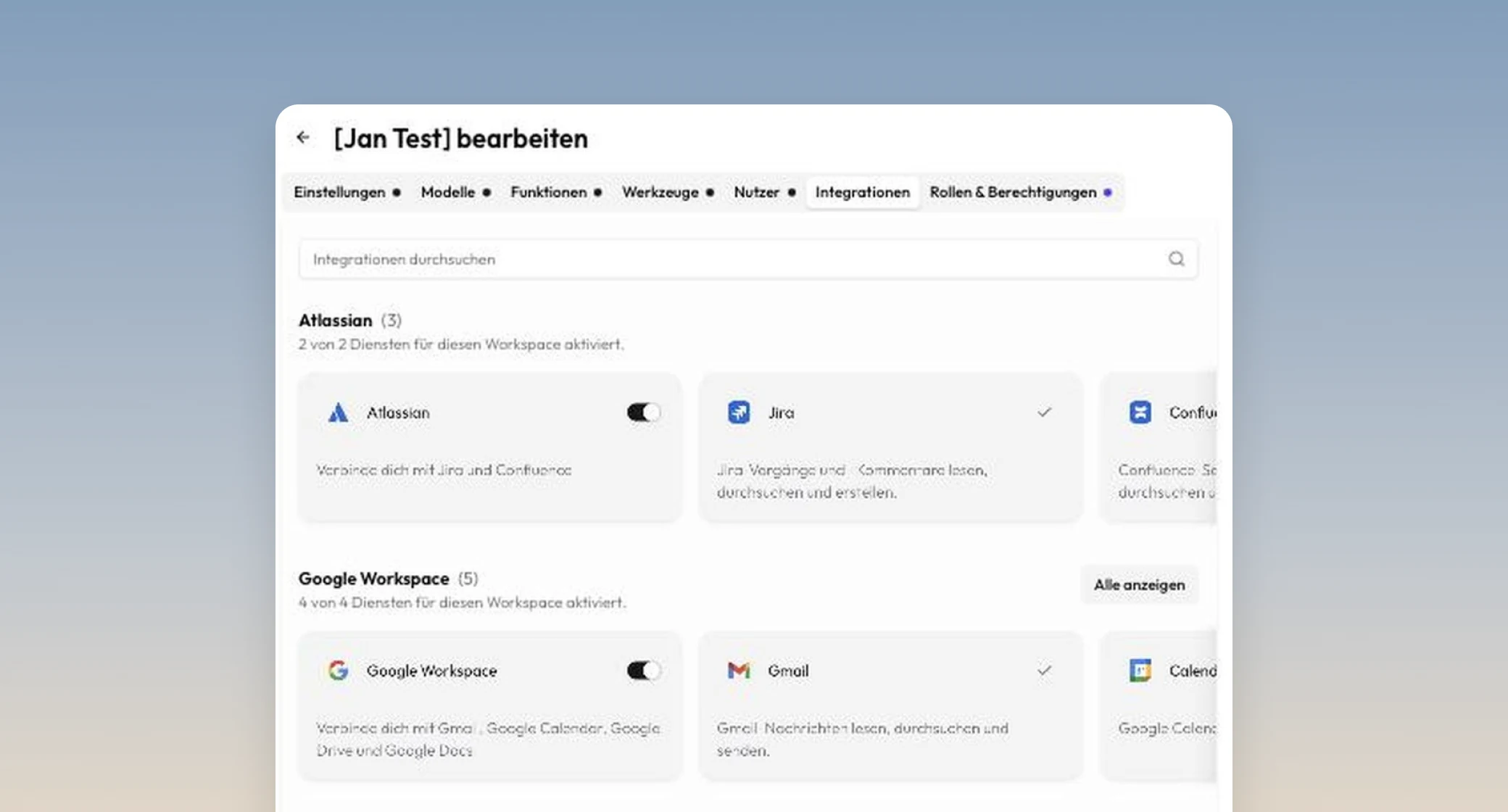
Rechte je Integration einzeln steuern
Je Integration lässt sich festlegen, welche Dienste aktiv sind und was Fundament darf, zum Beispiel Outlook-Mails lesen, aber nicht senden, oder den Kalender lesen, aber keine Termine anlegen. Workspace Admins steuern das je Workspace. Du selbst kannst Mail, Kalender und weitere Dienste von Google oder Microsoft für dein Konto einzeln ein- und ausschalten. So lassen sich Funktionen Schritt für Schritt freischalten.
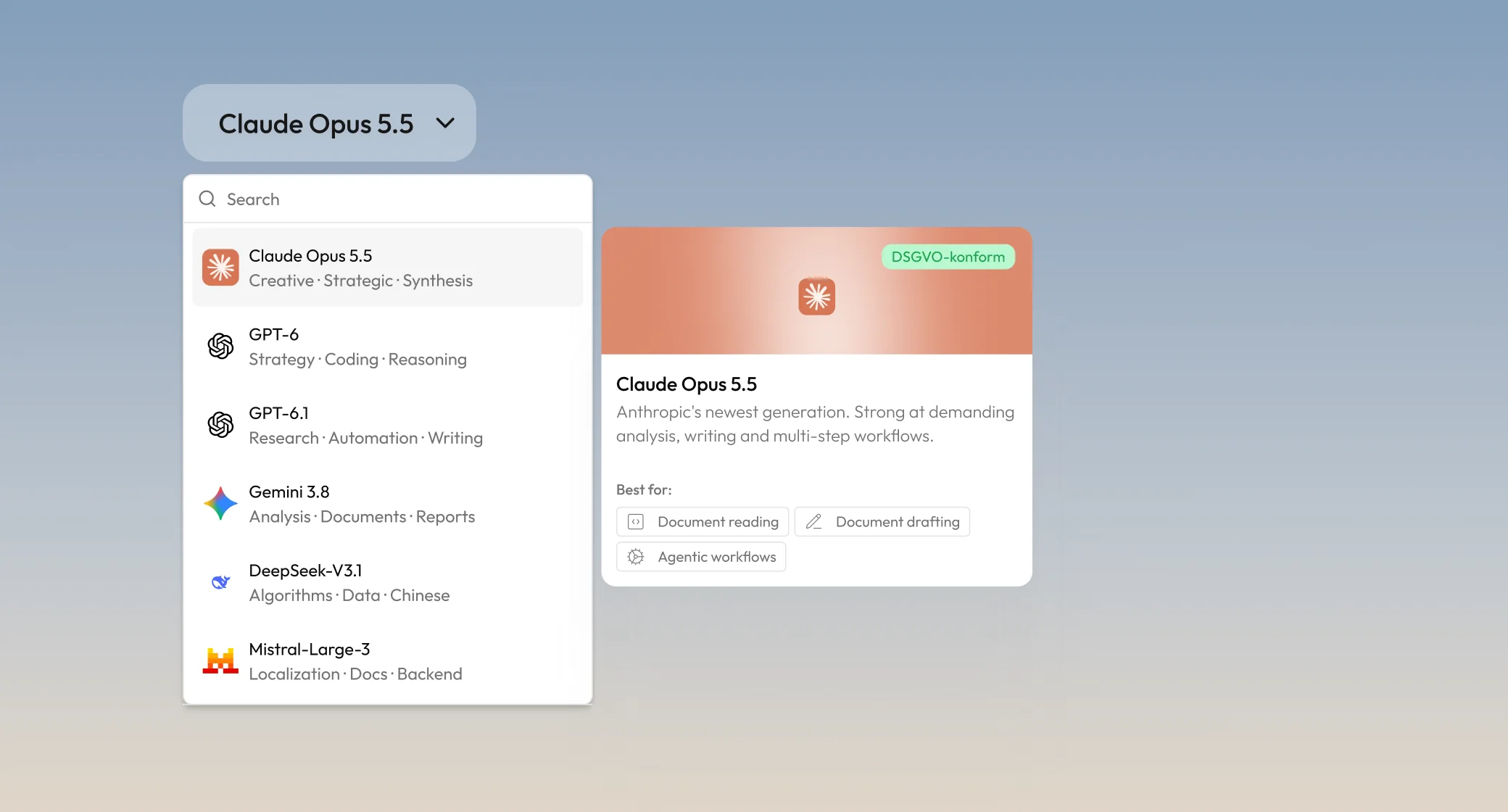
Neue Modellgeneration, aufgeräumte Auswahl
Die neue Modellgeneration von OpenAI, Anthropic und Google ist da: GPT-6 und GPT-6.1 inklusive Astra, Claude Opus 5.5 und Gemini 3.8. Ältere Modelle wie GPT-4o und GPT-4.1 verschwinden aus der Auswahl, die Liste wird kürzer. Agenten, die auf einem entfernten Modell gebaut sind, wechseln automatisch auf ein verfügbares Modell. Die neuen Modelle schaltet der Workspace Admin frei.
Die Oberfläche gibt es jetzt auch auf Englisch
Im Profilmenü unter „Sprache“ beziehungsweise „Language“ stellst du selbst zwischen Deutsch und Englisch um. Menüs, Schaltflächen und Hinweise wechseln sofort, deine Chats und Assistenten bleiben unverändert.

Verbesserungen
Excel-Dateien werden genauer gelesen
Spalten unter mehrzeiligen Kopfzeilen, etwa Jahr, Quartal und Monat, erhalten jetzt vollständige Namen, sodass Auswertungen die richtige Spalte treffen. Die Übersicht einer Arbeitsmappe nennt alle Tabellenblätter, auch leere und ausgeblendete. Aus Excel kopierte Zellen werden beim Einfügen in den Chat als Text übernommen statt als Bild. Bereits verarbeitete Dateien profitieren erst nach erneutem Hochladen.
Dateien aus OneDrive per Pfad oder Link öffnen
Dateien aus OneDrive lassen sich direkt über ihren Ordnerpfad oder ihre Web-Adresse öffnen, ohne dass der Assistent sich durch Ordner arbeiten muss. Für Excel-Online-Links aus der Adressleiste erscheint jetzt ein klarer Hinweis, wie du stattdessen einen funktionierenden Link kopierst. Zuvor kam eine irreführende Berechtigungsmeldung.
Verständliche Gründe bei fehlgeschlagenen Dateien
Kann eine Datei nicht verarbeitet werden, nennt die Kachel jetzt den Grund, zum Beispiel ein Passwortschutz, eine zu große oder beschädigte Datei. Dateien, deren Inhalt nicht zum Dateityp passt, und Virus-Testdateien werden beim Hochladen mit einer eigenen Meldung abgelehnt.
Übersichtlichere erzeugte Dateien
In einer Antwort lassen sich mehrere Dateien auf einmal erzeugen. Wird eine Datei innerhalb einer Antwort neu erzeugt, ist die ältere Version als „Veraltete Version“ gekennzeichnet. Links in Antworten sind nur noch klickbar, wenn sie tatsächlich funktionieren, der Download erfolgt über die Dateikarte.
Hinweis auf versteckte Anweisungen in Dateien
Enthält eine hochgeladene Datei Text, der sich an die KI richtet, ignoriert der Assistent ihn weiterhin und weist dich jetzt zusätzlich mit einer Zeile darauf hin.
Dateianhänge auch am Limit
Bei fünf angehängten Dateien bleibt das Plus-Menü nutzbar. Nur „Dateien hinzufügen“ ist ausgegraut, Integrationen und Werkzeugschalter funktionieren weiter.
„Assistent“ statt „Agent“
Auf Wunsch lässt sich die Bezeichnung für die ganze Instanz umstellen. In der Oberfläche und in E-Mails steht dann „Assistent“ statt „Agent“, Adressen, Berechtigungen und bestehende Daten bleiben gleich.
Einheitliche Ansprache auf Deutsch
Auf Deutsch duzt der Assistent jetzt durchgehend, auch in der automatischen Antwort nach der Verarbeitung einer Datei. Soll ein Agent siezen, lässt sich das in seinen Anweisungen festlegen.
Mehr Orientierung in der Modellauswahl
Die Modellauswahl zeigt zu jedem Modell eine kurze Beschreibung und Hinweise, wofür es sich besonders eignet.
Verlauf nach letzter Aktivität
Jede neue Nachricht, auch aus Workflows, aktualisiert jetzt „Zuletzt aktiv“. Aktive Unterhaltungen erscheinen damit oben im Verlauf statt nach Erstellungsdatum.
Aktuellere Quellen in der Websuche
Websuche-Zusammenfassungen in Workflows bevorzugen aktuelle Meldungen aus unterschiedlichen Quellen. Jede Antwort hat nur noch eine gesammelte Quellenangabe statt mehrerer verstreuter.
Feinschliff bei Workflows
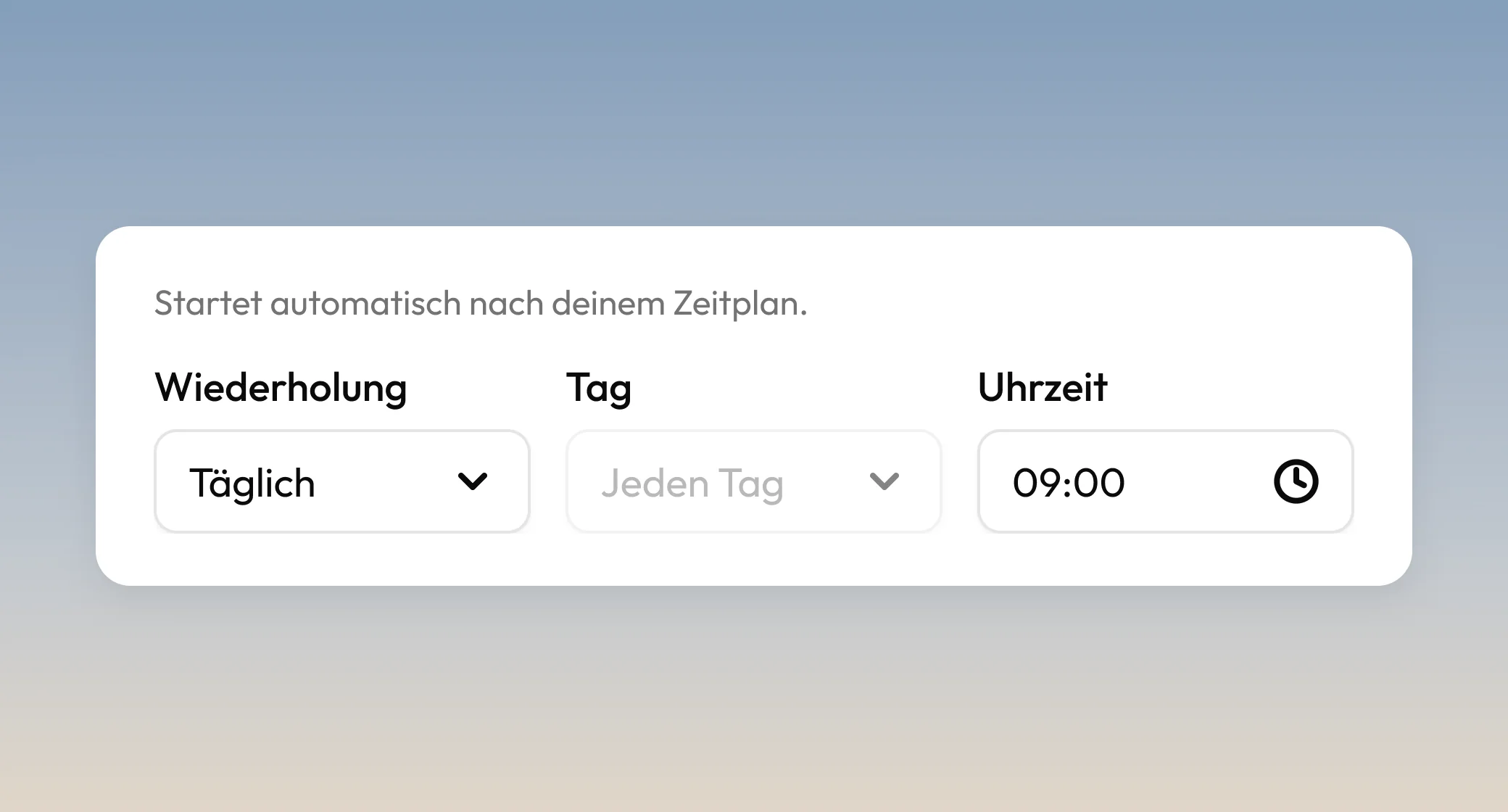
Die Uhrzeit eines geplanten Workflows lässt sich frei eingeben, bei täglicher Ausführung steht „Jeden Tag“ statt eines festen Wochentags, und laufende Workflows zeigen wieder eine Ladeanzeige. E-Mail-Workflows lesen bei Outlook jetzt auch Unterordner des Posteingangs, die sich über ihren Namen gezielt auswählen lassen. Die Karten in „Meine Workflows“ sind einheitlich hoch.
Einheitliches Erscheinungsbild
Die Übersichtsseiten für Agenten, Projekte, Dashboards, Bibliotheken und Workflows folgen jetzt einem gemeinsamen Aufbau mit gleich hohen Karten, Ladezuständen und einheitlicher Seitennavigation. Karten haben neue, natürlichere Schatten, Schaltflächen reagieren einheitlich auf Hover, und der Admin-Bereich wurde an das übrige Produkt angeglichen.
Mehr Schutz für deine Daten
Private Unterhaltungen sind ausschließlich für ihre Verfasser sichtbar, auch für Administratoren. Öffentliche und in Projekten geteilte Unterhaltungen bleiben wie gewohnt lesbar. Anfragen zur Bewertung einzelner Personen und nach der EU-KI-Verordnung verbotene Praktiken werden vor der Beantwortung erkannt und mit einem Hinweis abgelehnt. Das Analysieren oder Zusammenfassen solcher Themen bleibt möglich.
Fehlerbehebungen
Lange Aufgaben brachen vorzeitig ab
Ein Fehler wurde behoben, bei dem umfangreiche Aufgaben nach genau 16 Schritten abbrachen und fälschlich meldeten, Azure oder Bedrock sei nicht erreichbar.
Unterbrochene Unterhaltungen blieben dauerhaft fehlerhaft
Ein Fehler wurde behoben, bei dem eine Unterhaltung nach einer Unterbrechung direkt nach dem Nachdenken des Modells nicht mehr weitergeführt werden konnte. Bereits betroffene ältere Unterhaltungen werden nicht nachträglich repariert.
Chat-Export enthielt interne Denkschritte
Ein Fehler wurde behoben, bei dem PDF- und Text-Exporte die internen Denkschritte des Modells enthielten. Der Export zeigt jetzt nur, was auch im Chat sichtbar ist.
Navigation blockierte nach Chatstart aus der Agentenliste
Ein Fehler wurde behoben, bei dem Seitenleiste und Agentenauswahl nicht mehr reagierten, nachdem ein Chat über „Chat starten“ bei einem Agenten begonnen wurde. Ebenso reagiert „Neuer Chat“ aus einer bestehenden Unterhaltung wieder ohne Tabwechsel oder Neuladen.
Spracheingabe funktionierte nicht
Ein Fehler wurde behoben, bei dem die Spracheingabe im Chat keinen Text lieferte. Schlägt die Umwandlung fehl, erscheint jetzt eine verständliche Meldung.
Antworten aus einem falschen Bibliotheksdokument
Ein Fehler wurde behoben, bei dem ein Agent aus einem anderen als dem erfragten Dokument der Bibliothek antwortete. Fehlgeschlagene Dateien lassen sich außerdem wieder gesammelt aus einer Bibliothek löschen.
Agenten hielten die Tonalität nicht ein
Ein Fehler wurde behoben, bei dem Agenten die in ihren Einstellungen festgelegte Tonalität nicht berücksichtigten.
Rechte und Nutzerverwaltung
Ein Fehler wurde behoben, bei dem das Recht für Analytics keine Wirkung hatte und sich Rechte für Workflows nicht ändern ließen. Super Admins können andere Personen wieder zu Super Admins ernennen, und die Nutzertabelle zeigt Projekte nicht mehr in der Workspace-Spalte. Betrifft Workspace Admins und Super Admins.
Lange Workspace-Namen und Texteingabe
Ein Fehler wurde behoben, bei dem ein sehr langer Workspace-Name die Einstellungsseite abstürzen ließ und die Workspace-Auswahl verzerrte. Im Eingabefeld bleibt der Cursor bei langen Texten jetzt sichtbar.
English version
New features
Analyze Excel across multiple files
Drop up to five Excel files into a single message and analyze them in one go: totals, comparisons, deviations and complex calculations across all sheets. You get back a finished workbook with multiple sheets, formulas, filters, conditional formatting and charts that you can keep editing in Excel as usual. For example: “Use the bookings and the price list to calculate revenue per region and compare it with the budget. Where are we off by more than 10%?”
Word, PDF and PowerPoint ready to download
Fundament creates reports, minutes and quotes in Word, profiles or invoices as print-ready PDFs, and complete PowerPoint decks with a title slide, outline, charts and matching images. All files can be edited in Office as usual. Fundament currently processes uploaded PDFs of up to 500 pages.
Presentations and interactive documents in the browser
On request, presentations are also created as an HTML file, with images from the web and more design options. The file opens in your browser, where you edit text, images and slides directly and present from there. Interactive documents are created the same way, such as a dashboard built from several Excel files with a filter by month.
Fill in templates and edit existing files
Upload your own template, such as letterhead, a quote template or a form, and Fundament puts the content in the right places. Layout, logo and formatting stay intact. Fundament edits existing files in a targeted way instead of rebuilding them: add columns in Excel, insert a slide in PowerPoint or replace text in Word. The rest of the file stays as it is.
Improve images and place designs on ad spaces
Generated images can be refined step by step in the same chat, for example “The same image, now with confetti in the air.” You can also pass several images at once and combine them: upload a design and a photo of the ad space and write “Place the poster from the first image on the left billboard in the second image.”
Follow up on Teams meetings right in Fundament
Fundament pulls the transcript straight from Teams, with no download or upload. From it, you get decisions as a list, tasks with owners and due dates as a table, Jira tickets and follow-up meetings in your calendar, plus a follow-up email to the participants that is only sent once you approve it.
Emails only go out after your approval
When the assistant writes an email for you, it shows it as a card with recipient, subject and text before sending. It is only sent when you click “Approve”; with “Reject” it stays unsent.
Email attachments right in the chat
The assistant finds the email in Outlook and brings PDF, Word or Excel attachments into the chat, for example “Get me the attachment from the last email from Seeblick Reisen.” You can then summarize, analyze or compare them like any uploaded file. This currently works with Microsoft 365 (Outlook), Gmail will follow. Images embedded in the email body are not yet included. The feature has to be enabled by the workspace admin.
Find and schedule shared meetings
Name the participants and a time frame, for example “When are Anna, Tom and I free for 30 minutes next week between 9 am and 5 pm?”. The assistant checks the calendars in Outlook or Google and suggests suitable times. It adds the chosen slot directly as a meeting with a Teams link, and all participants receive the invitation. Rescheduling works via a message in the chat. The feature has to be enabled by the workspace admin.
Use Slack right from the chat
With the new Slack integration, the assistant summarizes channels and threads, finds messages across channels with sender and time, and posts in channels or replies in threads. Files from Slack will follow in a later release. The integration has to be enabled by the workspace admin.
Microsoft OneNote and Planner are connected
In OneNote, you search notebooks, read pages and create new pages. In Planner, you view your tasks, create new ones and mark them as done, for example “Which open tasks do I have in Planner? Sorted by due date.” Both integrations have to be enabled by the workspace admin.
Jira and Confluence right from the chat
In Jira, you see your tickets with status and comments, create new issues, comment and move them along. In Confluence, the assistant finds pages, reads them and summarizes them. This version supports one Atlassian site per connection. The integration has to be enabled by the workspace admin.
Control permissions for each integration
For each integration, you can define which services are active and what Fundament is allowed to do, for example read Outlook emails but not send them, or read the calendar but not create meetings. Workspace admins control this per workspace. You can switch email, calendar and other Google or Microsoft services on and off for your own account. This way, features can be rolled out step by step.
New model generation, cleaner selection
The new model generation from OpenAI, Anthropic and Google is here: GPT-6 and GPT-6.1 including Astra, Claude Opus 5.5 and Gemini 3.8. Older models such as GPT-4o and GPT-4.1 are removed from the selection, so the list gets shorter. Agents built on a removed model automatically switch to an available model. The workspace admin enables the new models.
The interface is now also available in English
In the profile menu under “Sprache” or “Language”, you switch between German and English yourself. Menus, buttons and hints change immediately, your chats and assistants stay the same.
Improvements
Excel files are read more accurately
Columns under multi-row headers, such as year, quarter and month, now get complete names so that analyses hit the right column. A workbook overview lists all sheets, including empty and hidden ones. Cells copied from Excel are pasted into the chat as text instead of an image. Files that were already processed only benefit after you upload them again.
Open OneDrive files by path or link
Files from OneDrive can be opened directly via their folder path or web address, without the assistant having to work its way through folders. For Excel Online links from the address bar, a clear hint now explains how to copy a working link instead. Previously, a misleading permission message appeared.
Clear reasons for failed files
If a file cannot be processed, the tile now shows the reason, for example password protection, or a file that is too large or corrupted. Files whose content does not match their file type and virus test files are rejected on upload with their own message.
Clearer generated files
Several files can be generated at once in a single response. If a file is regenerated within a response, the older version is marked as “Outdated version”. Links in responses are only clickable if they actually work; downloads go through the file card.
Notice about hidden instructions in files
If an uploaded file contains text addressed to the AI, the assistant still ignores it and now also points this out to you in one line.
File attachments at the limit
With five attached files, the plus menu stays usable. Only “Add files” is greyed out, integrations and tool toggles keep working.
“Assistant” instead of “Agent”
On request, the term can be switched for the entire instance. The interface and emails then say “Assistant” instead of “Agent”; addresses, permissions and existing data stay the same.
Consistent tone in German
In German, the assistant now consistently uses the informal “du”, including in the automatic reply after a file has been processed. If an agent should use the formal “Sie”, you can set this in its instructions.
More guidance in the model selection
The model selection shows a short description for each model and hints on what it is especially good at.
History sorted by last activity
Every new message, including from workflows, now updates “Last active”. Active conversations therefore appear at the top of the history instead of being sorted by creation date.
More current sources in web search
Web search summaries in workflows prefer recent news from different sources. Each response now has a single combined source list instead of several scattered ones.
Polishing workflows
The time of a scheduled workflow can be entered freely, daily runs show “Every day” instead of a fixed weekday, and running workflows show a loading indicator again. Email workflows in Outlook now also read subfolders of the inbox, which you can select specifically by name. The cards in “My workflows” all have the same height.
Consistent look and feel
The overview pages for agents, projects, dashboards, libraries and workflows now follow a shared structure with cards of equal height, loading states and consistent page navigation. Cards have new, more natural shadows, buttons react consistently on hover, and the admin area has been aligned with the rest of the product.
More protection for your data
Private conversations are visible only to their authors, including to administrators. Public conversations and conversations shared in projects remain readable as usual. Requests to evaluate individual people and practices prohibited under the EU AI Act are detected before answering and declined with a notice. Analyzing or summarizing such topics remains possible.
Bug fixes
Long tasks stopped early
Fixed an issue where extensive tasks stopped after exactly 16 steps and wrongly reported that Azure or Bedrock was unreachable.
Interrupted conversations stayed broken
Fixed an issue where a conversation could no longer be continued after an interruption right after the model’s thinking. Older conversations that were already affected are not repaired retroactively.
Chat export included internal thinking steps
Fixed an issue where PDF and text exports contained the model’s internal thinking steps. The export now only shows what is visible in the chat.
Navigation froze after starting a chat from the agent list
Fixed an issue where the sidebar and agent selection stopped responding after a chat was started via “Start chat” on an agent. “New chat” from an existing conversation also works again without switching tabs or reloading.
Voice input did not work
Fixed an issue where voice input in the chat returned no text. If transcription fails, a clear message now appears.
Answers from the wrong library document
Fixed an issue where an agent answered from a different library document than the one asked about. Failed files can also be deleted from a library in bulk again.
Agents did not keep their tone
Fixed an issue where agents did not follow the tone set in their settings.
Permissions and user management
Fixed an issue where the Analytics permission had no effect and workflow permissions could not be changed. Super admins can make other people super admins again, and the user table no longer shows projects in the workspace column. Affects workspace admins and super admins.
Long workspace names and text input
Fixed an issue where a very long workspace name crashed the settings page and distorted the workspace selection. In the input field, the cursor now stays visible with long texts.